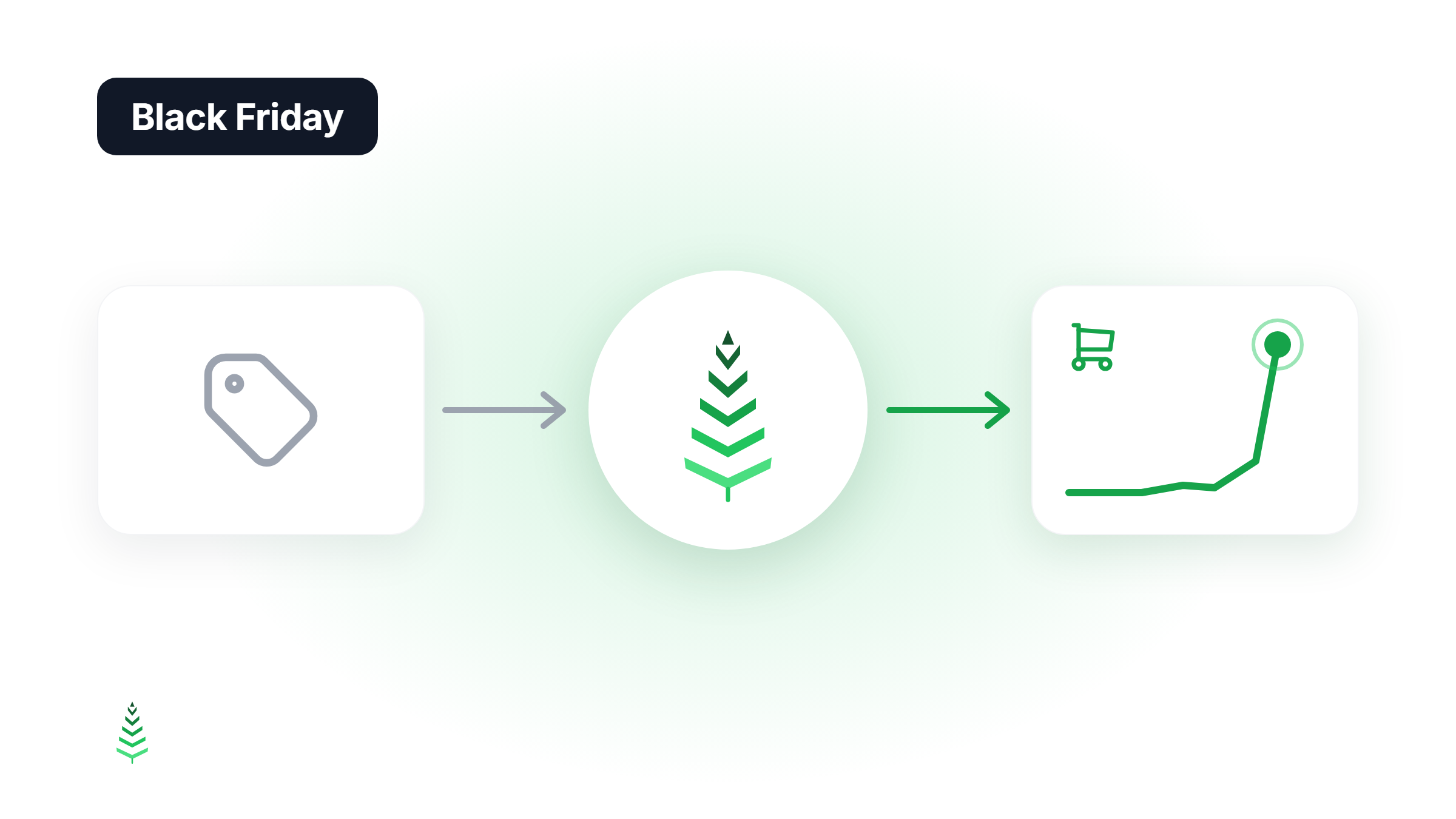
Black Friday (November 27 in 2026) sends a spike of visitors to your store at the exact moment your cache is coldest: you've just changed prices and stock, which purged the very pages people are about to hit. Warming those pages automatically before launch is the difference between a fast start and a buckling server. Here's how to set it up on WooCommerce, for Black Friday or any flash sale.
The worst moment to have a cold cache
Black Friday, flash sales, a product featured in a newsletter: these events share one thing in common: a sudden spike in traffic. And they share another: your cache is almost certainly cold.
Why? Because you've just updated prices, stock levels, or promotional banners, and the cache plugins hooked into WooCommerce purge the affected pages on save. Your product pages, category pages, and sometimes your homepage are cold at the exact moment visitors arrive.
The result is familiar: slow page loads, poor conversion rates, and sometimes a server that buckles under a load it would have handled fine if the cache had been warm.
What gets purged and when
WooCommerce doesn't manage a page cache itself: your cache plugin, host, or CDN reacts to its events. The exact scope depends on your setup, but the usual triggers are:
- Product save: the product page, often its categories, sometimes the shop page and the homepage
- Bulk price changes: the same, multiplied by the number of products edited
- Stock changes: depending on your settings, each order can purge the page of the product sold
- Global purges: a theme or menu change, a plugin update, or the "clear cache" button can wipe everything at once
Don't assume it, measure it: edit a test product, then check which pages go back to MISS in their cache headers. For a sale, you typically change prices right before launch, so a large part of your catalog is cold the moment the sale goes live.
The naive solution: manual warm-up
Many teams solve this by opening a browser and clicking through their most important pages before the sale. This works, once. It warms the desktop cache for a single user-agent from a single location. Mobile visitors, Googlebot, and users served by different CDN edge nodes still get cold pages.
The right solution: automated multi-variant warming
A proper pre-sale warm-up should cover:
- All affected URLs: not just the homepage, but the shop page and every product and category page touched by the sale
- Multiple user-agents: desktop Chrome, mobile Safari, Googlebot
- Multiple regions: if you have a CDN or international traffic, because each point of presence keeps its own cache
With CacheBoost, you can trigger this via the API from your sale-launch script, using a key with the boosts:write scope:
curl -X POST https://api.cache-boost.com/v1/boosts/{boost_id}/run \
  -H "Authorization: Bearer cb_live_..." \
  -H "Content-Type: application/json"
While a run of that boost is in progress, the API refuses to start another one (a 409 response). So finish your price changes before you start warming, or pages purged after the run has passed will stay cold.
You can also use the WordPress plugin, which covers two cases:
- Smart mode: whenever a product is saved, it warms that product's page and categories. The shop page and homepage aren't necessarily included.
- Full mode: it starts a full boost on a global purge, such as a full clear in WP Rocket, W3 Total Cache, LiteSpeed, or WP Super Cache, a theme or menu change, or a plugin update.
Editing prices product by product therefore doesn't trigger a full warm-up. For an event like Black Friday, keep an explicit full run in your launch plan.
Timing your warm-up
Start with a dress rehearsal several days before the event: run the sale's boost and note how long it takes in the run history. Duration varies widely with the number of URLs, variants, and regions, and with the speed of your origin: from a few minutes to more than twenty, depending on the site.
Then the typical sequence:
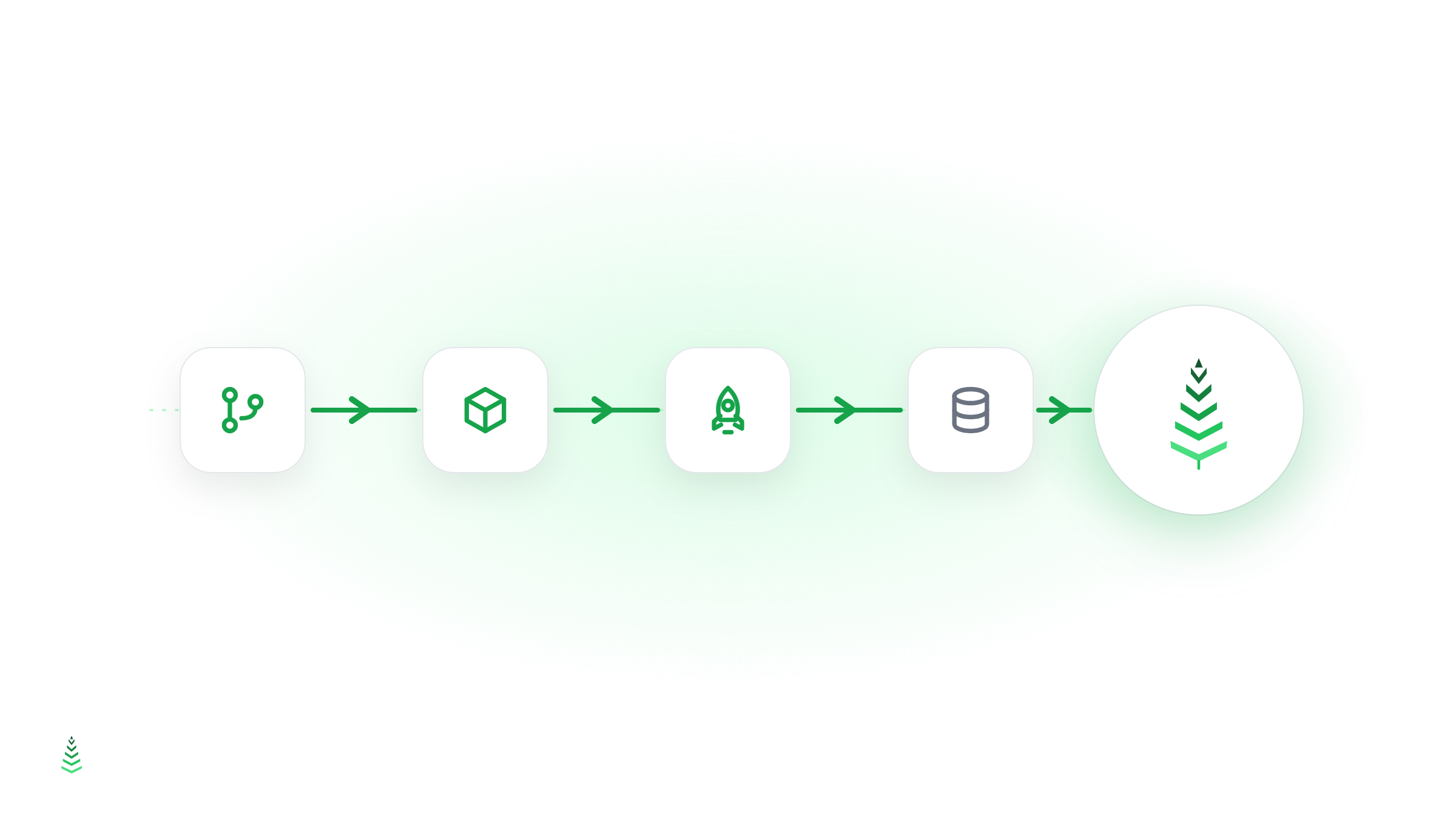
- Before T-0, with a margin of at least twice the measured duration: update prices and stock in WooCommerce (this flushes the cache), then make no further changes
- Right after: the CacheBoost warm-up starts (API call or plugin hook)
- Before T-0: confirm the run has finished and spot-check a few URLs from another region
- T-0: the sale goes live. Pages are already warm, and visitors get cached responses
Check your TTL too: it must comfortably exceed the gap between the end of the run and peak traffic, or the warmed pages will expire before visitors arrive.
The scheduled sales case
If you use WooCommerce's sale dates, the price switches on its own. Recent versions do it at the scheduled time, product by product; older ones relied on a daily task that could run late. Either way, you can't warm a price that isn't live yet. You have two options:
- Apply prices slightly ahead of the announcement: most of the traffic comes from your newsletter or ads. Update prices, warm, then send the announcement at T-0. This is the safest option for the cache, as long as a few visitors can see the prices early.
- Keep the schedule and start a boost right after the switch: for example with a cron expression or a scheduled API call. The first visitors may then hit cold pages while the run is in progress.
For the second option, test on a single product first. Cache plugins don't all react the same way to this automatic switch: make sure the page is actually purged, or the old price will stay on display until the cache expires.
Handling stock during the sale
Once the sale is running, orders keep coming in. Each order changes stock levels, which can trigger cache purges. You have two options:
- Set a high cache TTL and limit stock-related purges: if your stock numbers don't appear on the page (or you can tolerate a short delay), this is the simplest choice, especially at high volume.
- Opt in to stock-change warming in the CacheBoost plugin (off by default): every stock-level change triggers a targeted warm of the affected product page. URLs are grouped within an order, but not across orders, so 50 orders can mean up to 50 API calls. Keep this setting for moderate volumes. At high volume, prefer a boost scheduled at regular intervals on the sale's pages.
Monitoring the event
During a high-traffic event, keep an eye on:
- Cache hit ratio in your CDN or Varnish dashboard: a sudden drop indicates pages are being purged faster than they're being warmed
- CacheBoost run history: verify that warm-up runs are completing successfully
- TTFB via a real-user monitoring tool: a rising TTFB during the event is often the earliest signal of a cold cache problem
Warming doesn't replace server capacity: cart, checkout, and account pages aren't served from cache and always hit your origin. But by serving catalog pages from cache, it leaves that capacity for the visitors who are actually buying. Run your dress rehearsal now: it's the best time to find out what stays cold, while there are no customers on the site yet.